ConstraintLayout은 사용법만 제대로 익힌다면 다른 레이아웃보다 훨씬 유연하게 UI를 구성할 수 있도록 설계되어 있습니다. 안드로이드 API 14 버전 이상부터 구동이 가능한데, 현재 안드로이드 사용자의 약 99% 이상이 이에 해당하므로 사실상 모든 기기에서 호환된다고 보셔도 무방합니다.
ConstraintLayout은 디자인 탭의 속성 메뉴를 이용해 시각적으로 구성할 수도 있고, XML에서 직접 코드를 작성할 수도 있습니다. 이번 포스팅에서는 제가 실무에서 가장 많이 사용하는 주요 설정법에 대해 자세히 알아보겠습니다.
xmlns:app="http://schemas.android.com/apk/res-auto"가장 먼저 확인해야 할 점은 부모 레이아웃에 위와 같은 app 네임스페이스가 포함되어 있어야 한다는 것입니다. 이 속성이 없다면 ConstraintLayout의 핵심인 app 속성들을 사용할 수 없습니다.
위젯 관계 설정 방법
첫 번째로 설명해 드릴 내용은 위젯 간의 관계를 설정하는 방법입니다. ConstraintLayout은 app:layout_constraint[내방향]_to[대상방향]Of 속성을 사용하여 위젯의 위치를 결정합니다.
app:layout_constraint방향(이 위젯의 해당 방향에서)_to(대상 위젯의 해당 방향으로)of : 대상id or parent위젯의 관계 설정 시 사용하는 방향 명칭은 다음과 같습니다.
- top: 위쪽
- bottom: 아래쪽
- start (left): 왼쪽
- end (right): 오른쪽
상하좌우 각각 속성 설정이 가능하기 때문에, 예를 들어 좌측과 우측을 모두 부모(parent)의 왼쪽과 오른쪽에 연결하면 위젯이 수평 중앙에 위치하게 됩니다. 또한 여러 위젯을 서로 연결하여 화면 비율에 맞게 배치함으로써 반응형 UI를 쉽게 구현할 수 있습니다.
XML 예시 (activity_main.xml)
<?xml version="1.0" encoding="utf-8"?>
<androidx.constraintlayout.widget.ConstraintLayout
    xmlns:android="http://schemas.android.com/apk/res/android"
    xmlns:app="http://schemas.android.com/apk/res-auto"
    xmlns:tools="http://schemas.android.com/tools"
    android:layout_width="match_parent"
    android:layout_height="match_parent"
    tools:context=".MainActivity">

    <Button
        android:id="@+id/testButton"
        android:layout_width="wrap_content"
        android:layout_height="wrap_content"
        android:text="Hello World!"
        app:layout_constraintBottom_toTopOf="@id/TextView_Button"
        app:layout_constraintLeft_toLeftOf="parent"
        app:layout_constraintRight_toRightOf="parent"
        app:layout_constraintTop_toTopOf="parent"/>

    <TextView
        android:id="@+id/TextView_Button"
        android:layout_width="wrap_content"
        android:layout_height="wrap_content"
        android:text="Hello World!"
        app:layout_constraintBottom_toBottomOf="parent"
        app:layout_constraintEnd_toEndOf="parent"
        app:layout_constraintStart_toStartOf="parent"
        app:layout_constraintTop_toBottomOf="@id/testButton"/>

</androidx.constraintlayout.widget.ConstraintLayout>
위의 코드는 버튼과 텍스트뷰를 서로 연결하고 부모 레이아웃과의 관계를 설정하여, 두 위젯이 화면 중앙에 정렬되도록 만든 예시입니다. 이렇게 설정하면 기기의 화면 크기가 달라져도 위젯들이 비율에 맞춰 위치를 잡게 됩니다.
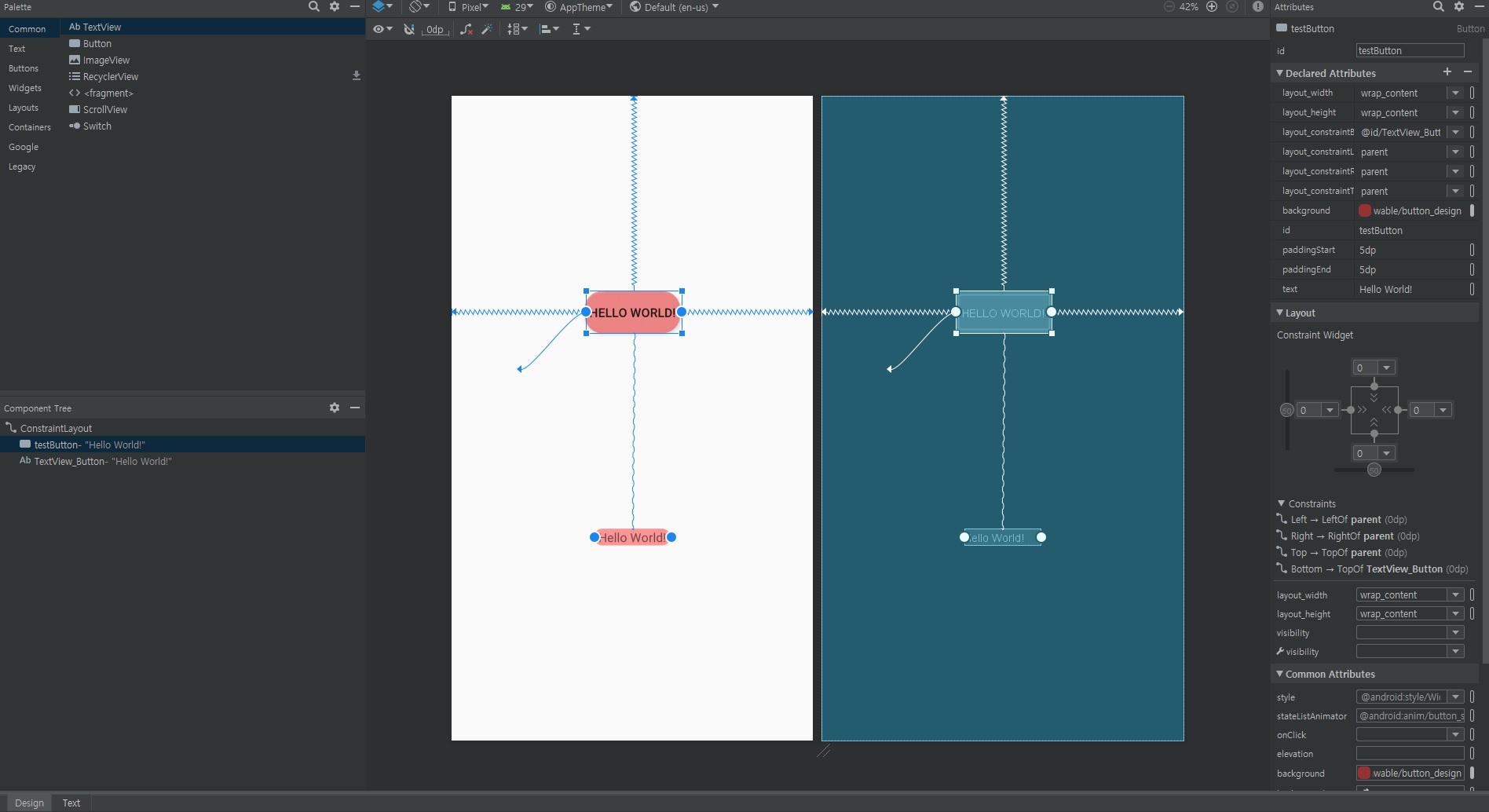
이러한 관계 설정은 직접 코드를 치지 않고 디자인(Design) 탭에서도 가능합니다. 팔레트에서 위젯을 끌어온 뒤 위젯 가장자리에 있는 동그라미 아이콘을 클릭하여 부모 레이아웃이나 다른 위젯으로 드래그하면 자동으로 XML 코드가 생성됩니다.
더 자세한 작동 원리는 아래의 안드로이드 공식 문서를 참고하시면 큰 도움이 됩니다.
오늘은 안드로이드 레이아웃 중 가장 강력한 기능을 가진 ConstraintLayout의 기본 사용법을 알아보았습니다. 구글에서도 빈 프로젝트 생성 시 기본 레이아웃으로 설정할 만큼 권장하는 방식이므로, 반드시 익혀두시는 것이 좋습니다.
다음 포스팅에서는 화면 비례 크기 설정, 가이드라인 활용법, 위젯의 너비/높이 비율 설정 등 더 심화된 내용으로 찾아뵙겠습니다. 긴 글 읽어주셔서 감사합니다.
관련 글 읽기
이 글의 저작권은 전적으로 작성자인 P_Emblem에게 있으며 허락 없는 무단 사용을 금합니다.